Patch [Tab 12]

Patch is used to associate Eos control channels with device addresses and profiles. Eos treats fixtures and channels as one and the same, meaning each fixture is assigned a single control channel number. Once a channel is patched to an address or addresses, and the output is connected to a device (such as a dimmer, LED fixture, mover, or hazer), the channel will then control that device. Individual parameters of that device (such as intensity, focus, color, and beam) are also associated with that same channel number but as additional lines of channel information.
Patch can be opened in a standalone tab from the Workspace Layout Menu or by using [Tab] & [1][2].
This display can also be accessed:
- Via a connected keyboard with ;.
You may also use:
- [Displays] {Patch}
- [Address/Patch] [Address/Patch]
- {Address} {Address} (Ion Classic)
- [Patch] (Element Classic)
Overview
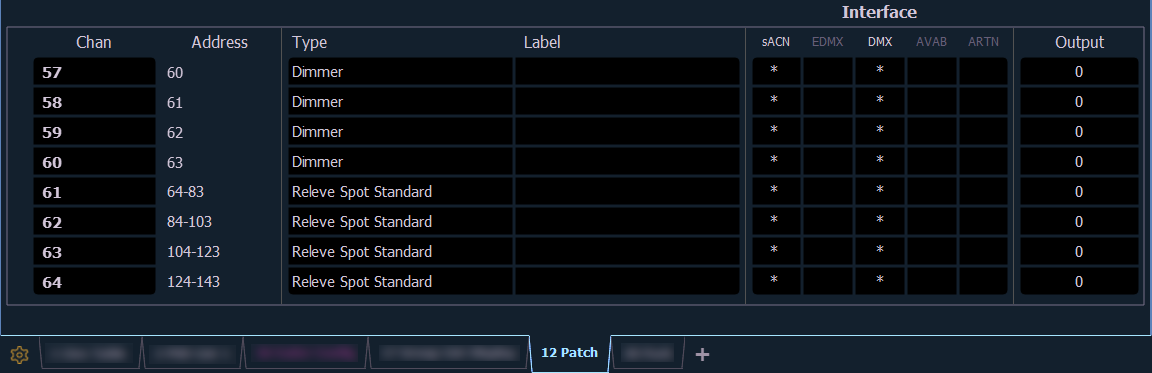
The patch display will display the following information if available:
- Channel - the patched channel number. In patch by address mode, channel will appear blank if not currently patched.
- Address - the patched output address. In patch by channel mode, address will appear blank if not currently patched. Pressing [Data] toggles the display from showing address as patched by the user, output address, and the port/offset. See Using Output Address vs Port / Offset.
- Type - device, dimmer, or scenic element type that is patched. An asterisk (*) next to the type indicates that the fixture profile needs to be updated. See Updating Fixture Profiles.
- Label - displays the assigned label of the channel or address. See Labeling.
- Interface - displays which interfaces will be used for the device. If Patch > Patch > {Interface} is enabled, an asterisk (*) will appear in the interface column on the Primary and any connected Client.
- Output - displays the current live intensity level. Value is displayed as 0 through 255, with 255 being full. 16 bit intensity values will display as 0 through 65535.
While Patch is open, the Central Information Area (CIA) will provide access to the following sections:
- Patch > Patch - default. Basic information about patched devices.
- Patch > Attributes - in-depth information about patched devices.
- Patch > Database - additional fields and notes.
- Patch > Augment3d - 3D positioning information for use with Augment3d [Tab 38].
- Patch > Protocols - data output settings for your Eos Family device.
- Patch > Device List - devices detection and configuration via the Remote Device Management (RDM) protocol.
Patching Methods
Depending on your situation, you may need to create a custom patch, which associates specific addresses and channels.
Partial Patch Opening and Partial Patch Merging allow you to open or merge patch data from other show files.
Clearing the Patch and creating a 1-to-1 patch can be done via the Clear display.
Manual Patching
For manual patching, you are required to only enter the simplest data to patch a device and begin programming your show, such as the channel number, the device type (if needed), and address. When you provide more information in the patch, you will have more detailed control and improved function during operation.
For patching fixtures, there are two different patch modes: Patching By Channel and Patching By Address. Eos defaults to patch by channel mode. Pressing [Format] while in the Patch display will toggle the mode between patch by channel and patch by address.
Creating Multipart and Compound Channels allows you to patch one or more devices to a single channel. For example, you may want to patch a group of dimmers to the same channel. In addition you may patch multiple devices to the same channel for building compound or accessorized fixtures. For example, a Source Four® with a color scroller and a gobo changer may be patched to a single compound channel.
RDM Patching
RDM allows bi-directional communication between the console and any RDM devices over RDM or Ethernet. See Patch > Device List.
Element 2 and Element Classic Patching
Element 2 and Element Classic can create a 1-to-1 patch when you open a new show file. This means that the patch will automatically have channel 1 patched to address 1, channel 2 to address 2, and so on up to the maximum channel count of your console. When outlined in yellow, the {Patch 1 to 1} button is selected, and a 1-to-1 patch will be created.
Status in the Patch Display
Status flags will display on the far left of the patch display to advise you when a channel or address requires your attention.
A red exclamation mark (!) or a yellow question mark (?) is used in Patch, Live (see Indicators in Live and Blind), Patch, [About] Channel, and [About] Address to indicate Eos has detected Errors and Warnings from connected RDM, CEM+, CEM3, or ACN devices.
Errors and warnings are indicated based on severity using the following colors:
- Gray - unknown or not an error.
- White - an advisory: something that might be worth knowing about but likely won't affect system operation.
- Yellow - a warning: something you should know about that may affect system operation. Warning messages could include:
- Multiple device addresses overlap.
- A mismatch between the patched fixture type and the real fixture.
- A mismatch between the patched address and the fixture address.
- A device is offline.
- Red - an error: something definitively wrong that is likely or certain to affect system operation. Error messages could include:
- A circuit is over temperature (overtemp).
- A breaker has tripped.
- A lamp is out.
The relative severity of an error in any given device is determined by the device manufacturer.
Use {Clear Errors} to remove displayed errors from the list.
Flexichannel Views in Patch
In patch by channel mode, [Flexi] can be used to view only those channels that are currently patched. In patch by address mode, [Flexi] can be used to view only those addresses that are currently patched. By pressing [Flexi], you can toggle the view between patched channels/addresses, selected channels, and all channels/addresses.
Holding down [Flexi] will display the following softkeys:
- {Flexi All} - displays all the channels or addresses depending on which view is used.
- {Patch} - displays only the patched channels or addresses.
- {Selected} - displays any selected channels or addresses.
- {View Channels} - displays those channels selected for the View Channels flexichannel state.
- {Partitioned} - only available when partitioning is enabled. Displays the following options:
- Partitioned Channels
- Partitioned Patched Channels
- Partitioned Select Channels
- Partitioned View Channels
Scenic Elements and Scenic Element Movable channels use no addresses when patched, and will appear in the Flexi Patched display.